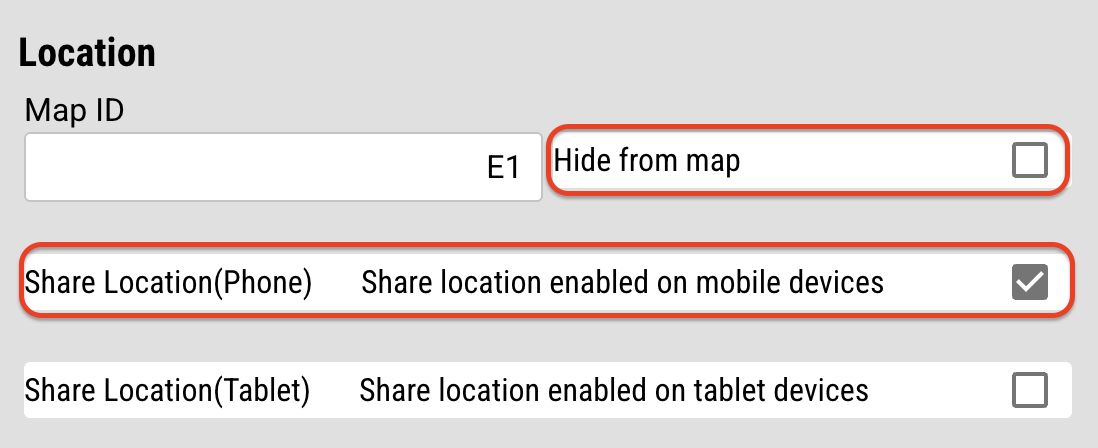
Showing an Android phone on the map takes two steps:
- Turning on location services on the phone itself
- Enabling location sharing for that user in the web portal.
Both are required.
Android covers many brands — Samsung, Google, Motorola and others — so your menus may differ slightly from the screenshots below.
Step 1 — Enable Location Services on the Phone
Open the Settings app on the Android phone.
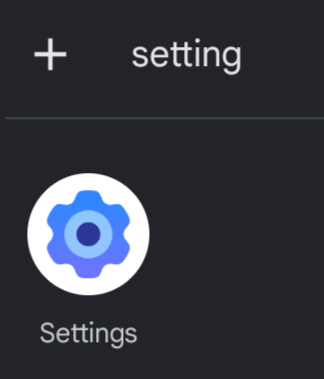
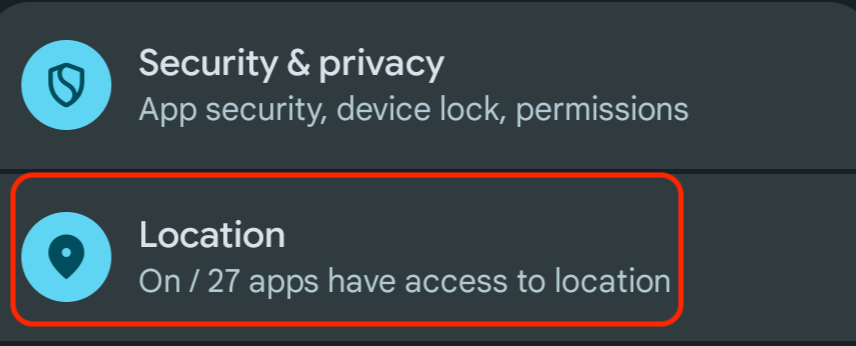
Scroll down and find Location.
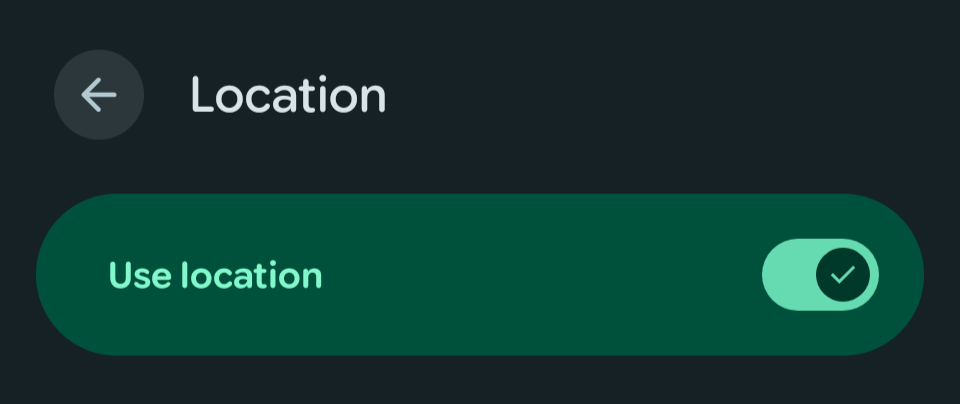
Make sure Use Location is toggled On.
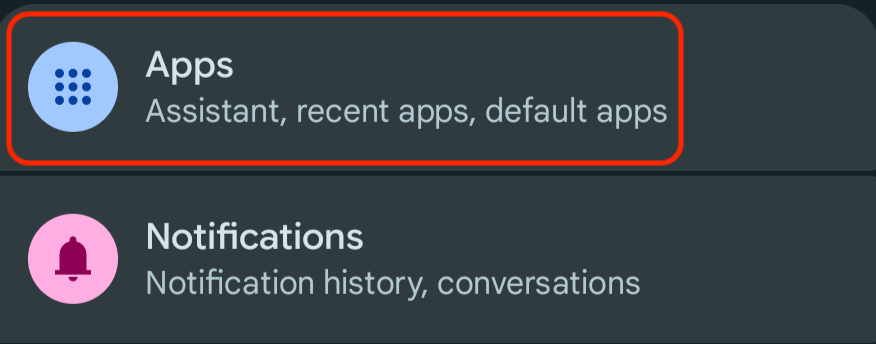
Go back to the settings page, scroll down and tap Apps.
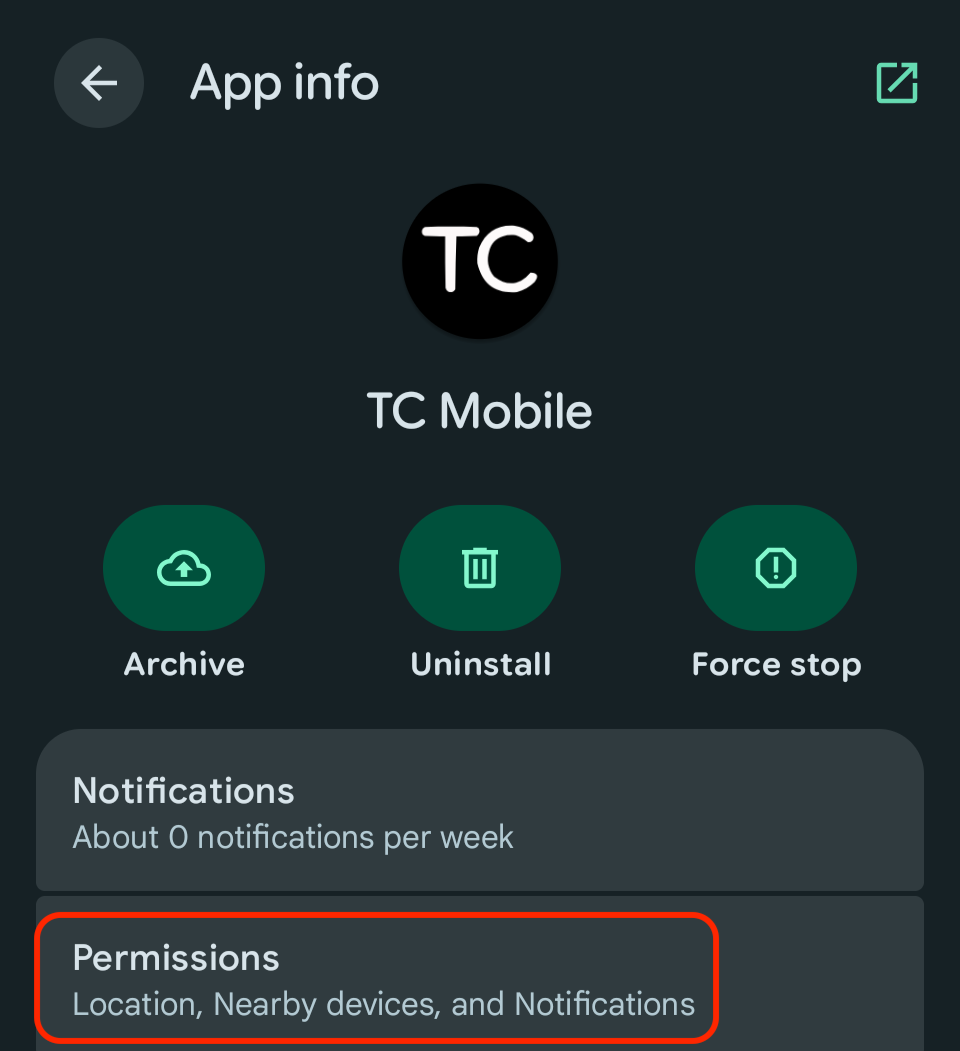
At the bottom of the list, tap See All Apps, scroll to TC Mobile and tap it.
In the App Info page, tap Permissions.
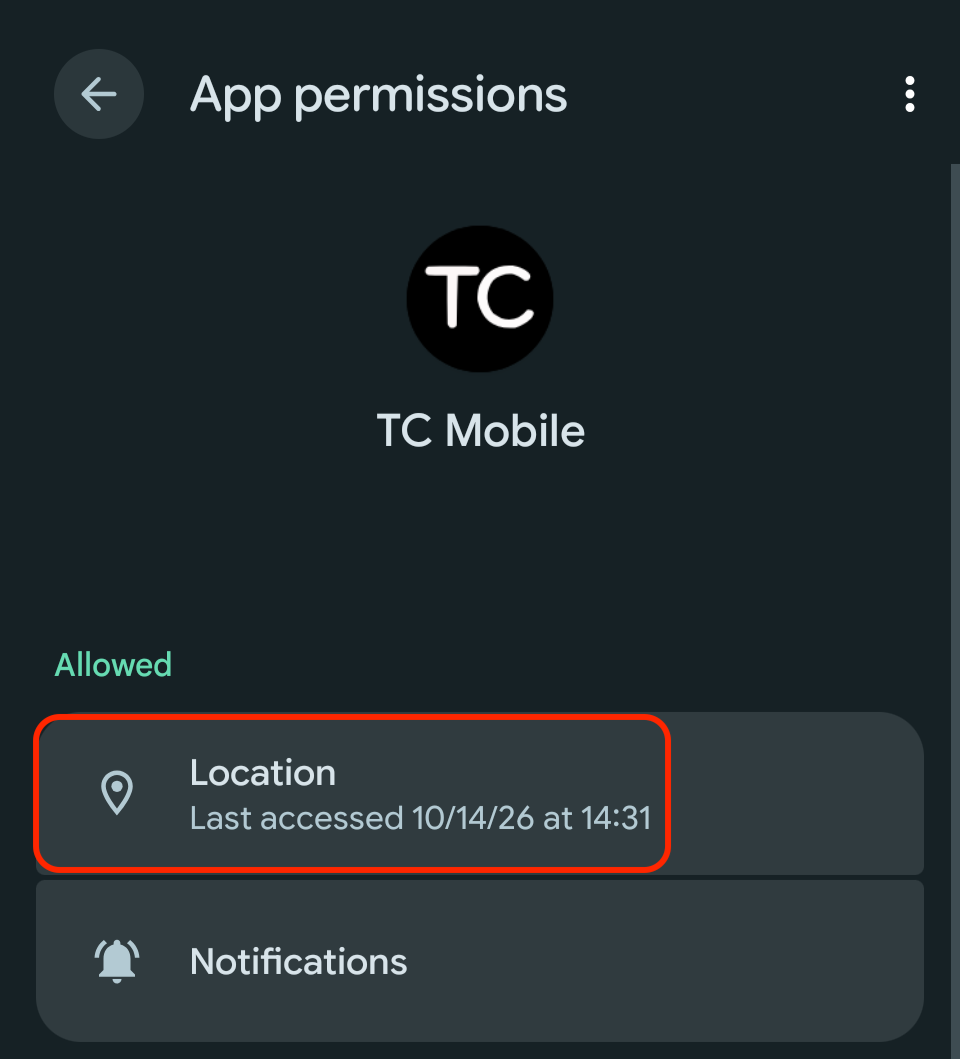
In the App Permissions page, Tap Location.
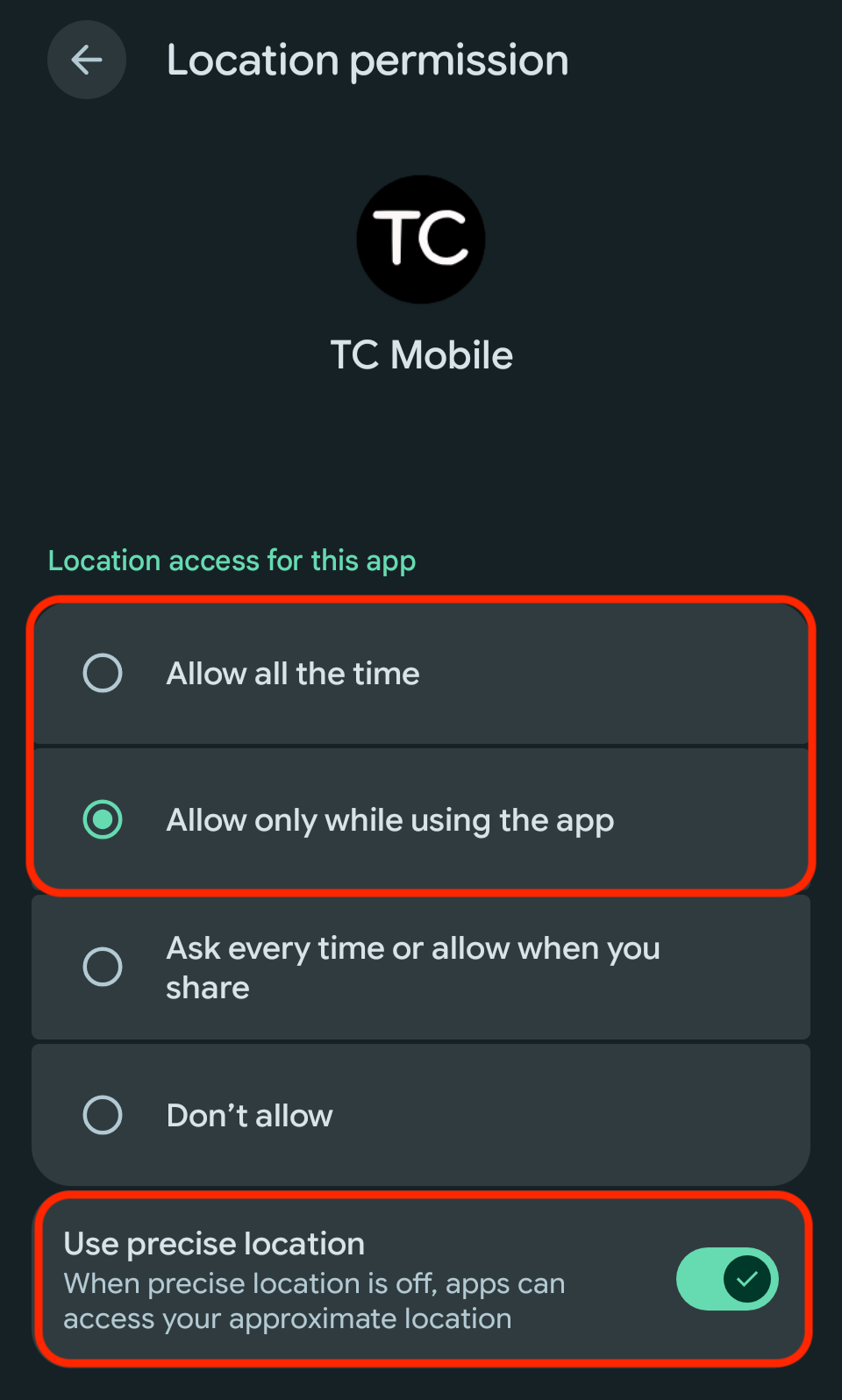
Choose the access level you want — usually Allow all the time or Allow only while using the app — and toggle Use precise location on.
Step 2 — Enable Location Sharing in the Web Portal
Requires admin access.
Go to portal.tabletcommand.com/login and sign in.
On the left, select Admin Features > Users.
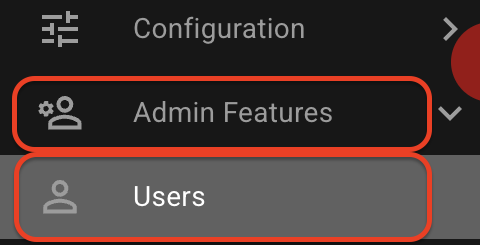
Find the user whose Android location you want on the map.
In the Location section, check Share Location (Phone) and make sure Hide From Map is unchecked.