
Critical alerts break through Silence and Do Not Disturb settings, so they reach you when ordinary notifications would silenced. Before they will work, iOS has to allow them for TC Mobile. Use the steps below to check the device settings.
Allow Critical Alerts on the Device
On your iPhone or iPad, open the Settings app and scroll down to Notifications.

In Notifications, scroll down to TC Mobile on a iPhone or Tablet CMD if on an iPad and tap it.

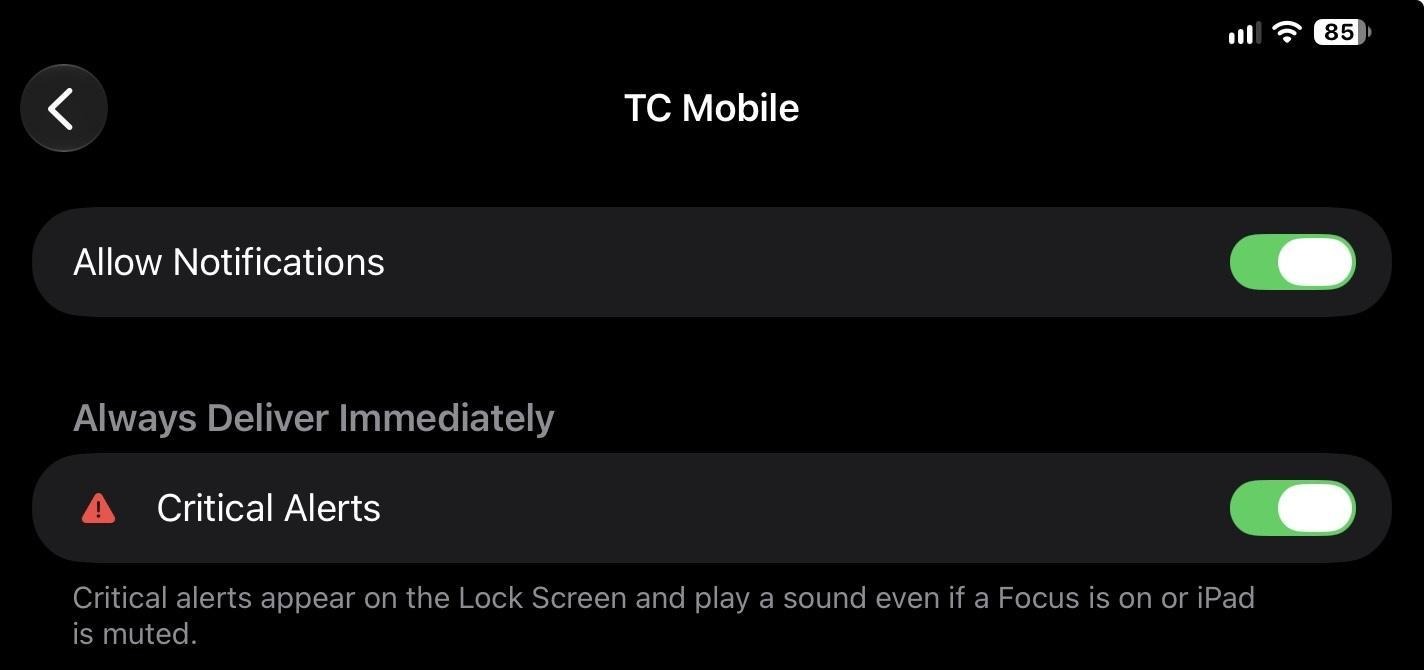
Make sure both Allow Notifications and Critical Alerts are toggled on.
Choose What Triggers an Alert
Device settings only grant permission, they don't decide what alerts you get. Open the TC Mobile app and set critical notifications for the units and incident types you want to be notified for.
Still Need Help?
If critical alerts are enabled in both places and you're still not receiving them, contact Tablet Command Support (support@tabletcommand.com) with the device type and the units or incident types you expected to be alerted for.