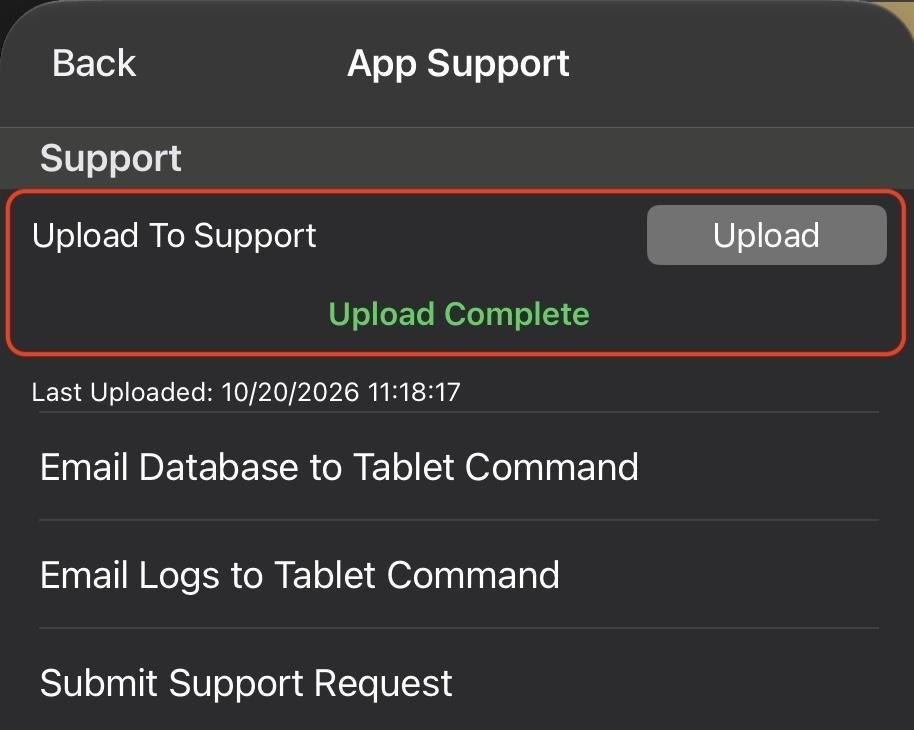
If you encounter an issue with the Tablet Command app, you can upload logs straight from the iPad. Uploading logs also creates a support ticket automatically for the Tablet Command Support team to review.
Upload Your Logs
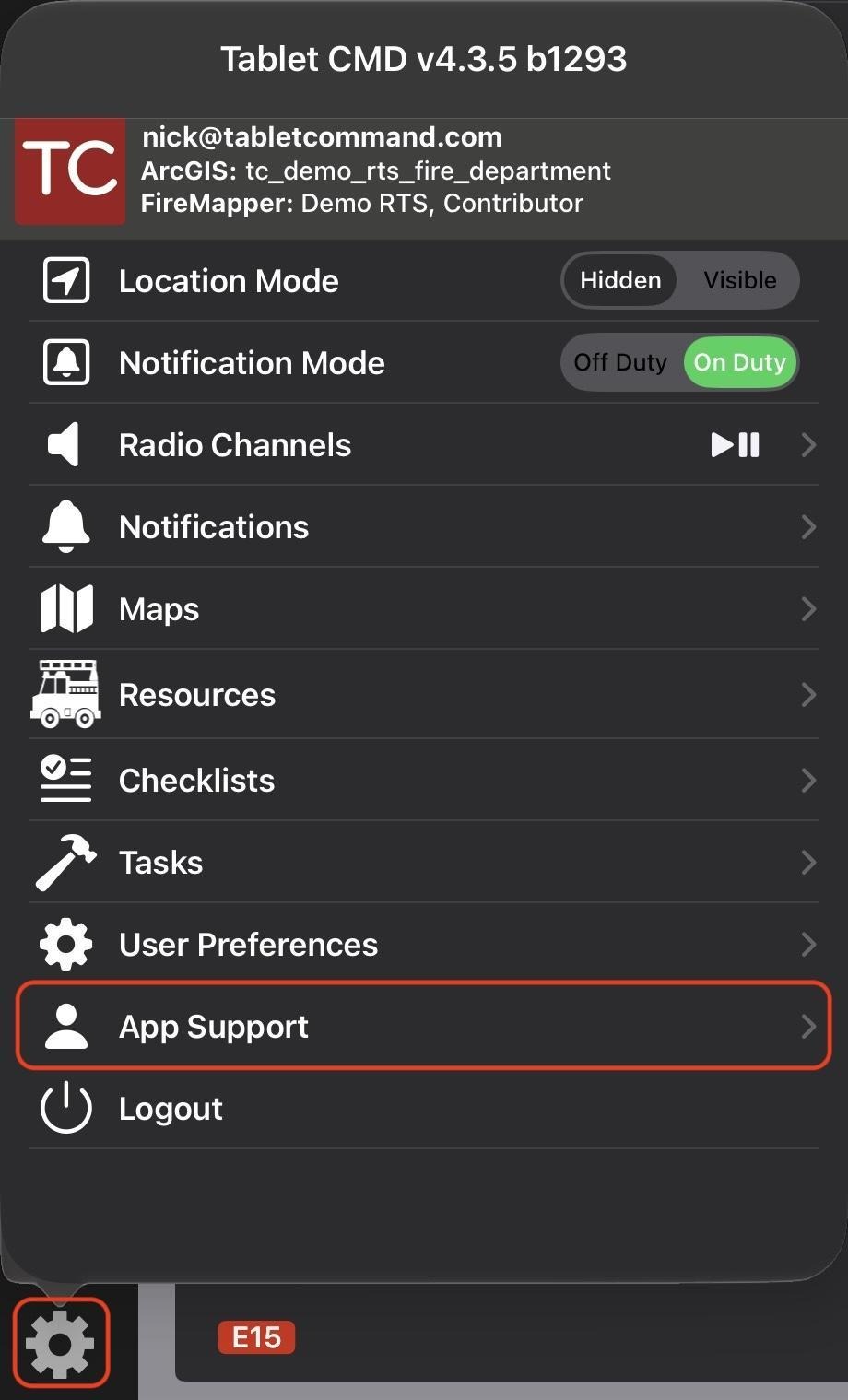
In the Tablet Command app, tap the gear icon in the lower left corner to open the settings menu, then tap App Support.
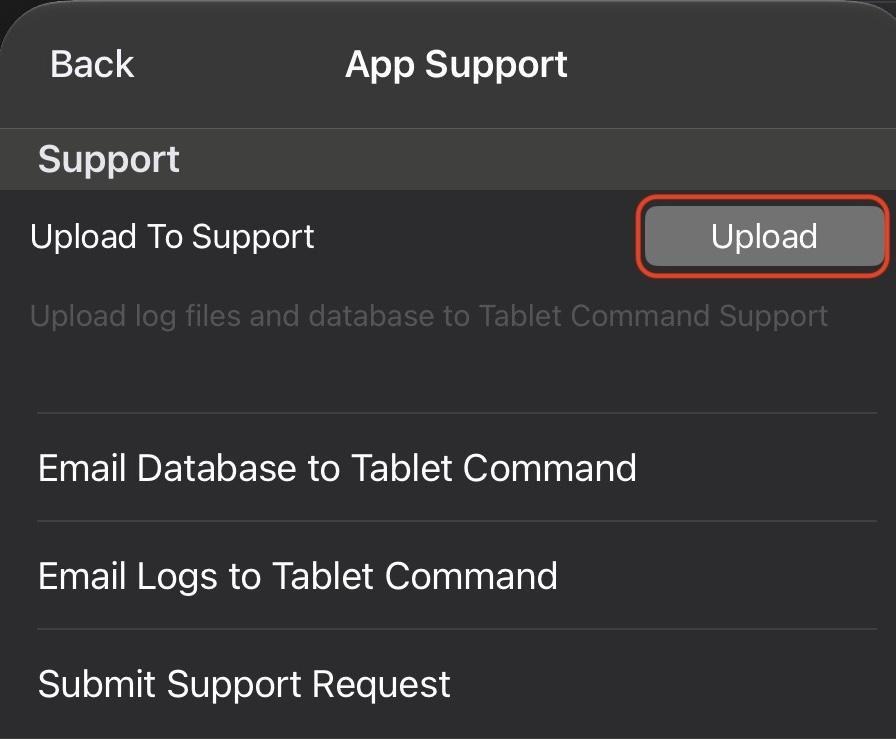
Tap Upload. A box appears asking you to select an issue, enter the date and time it occurred, and describe what happened.
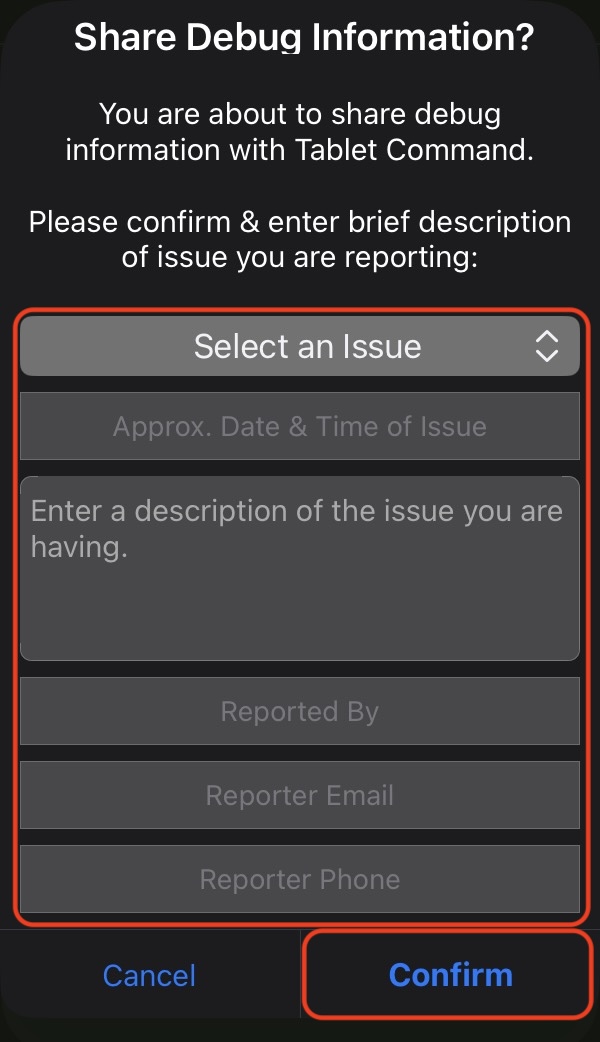
Fill in all the details, including your name and contact information, then tap Confirm.
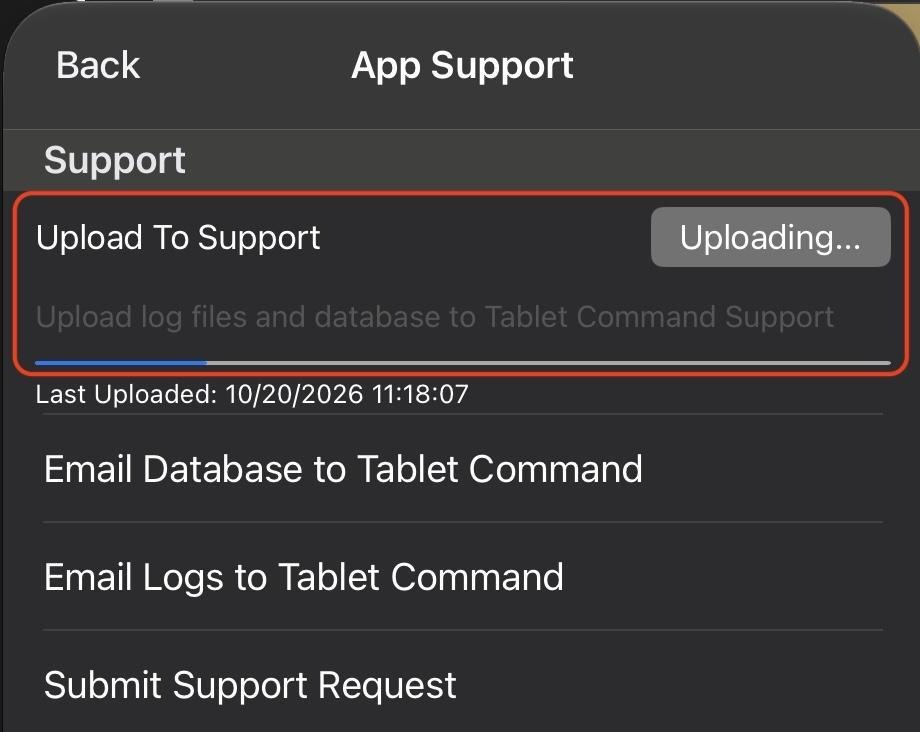
A progress bar appears and the box reads Uploading. Wait for it to finish.
When Upload Complete appears, your logs are on their way and a support ticket has been created.